
 Grafana Cloud
Observe and act
Monitor infrastructure
Cloud Provider Observability
GCP observability
Logs
Configure logs
Grafana Cloud
Observe and act
Monitor infrastructure
Cloud Provider Observability
GCP observability
Logs
Configure logsConfigure GCP logs
Complete the following steps to configure GCP Logs as shown in the following diagram.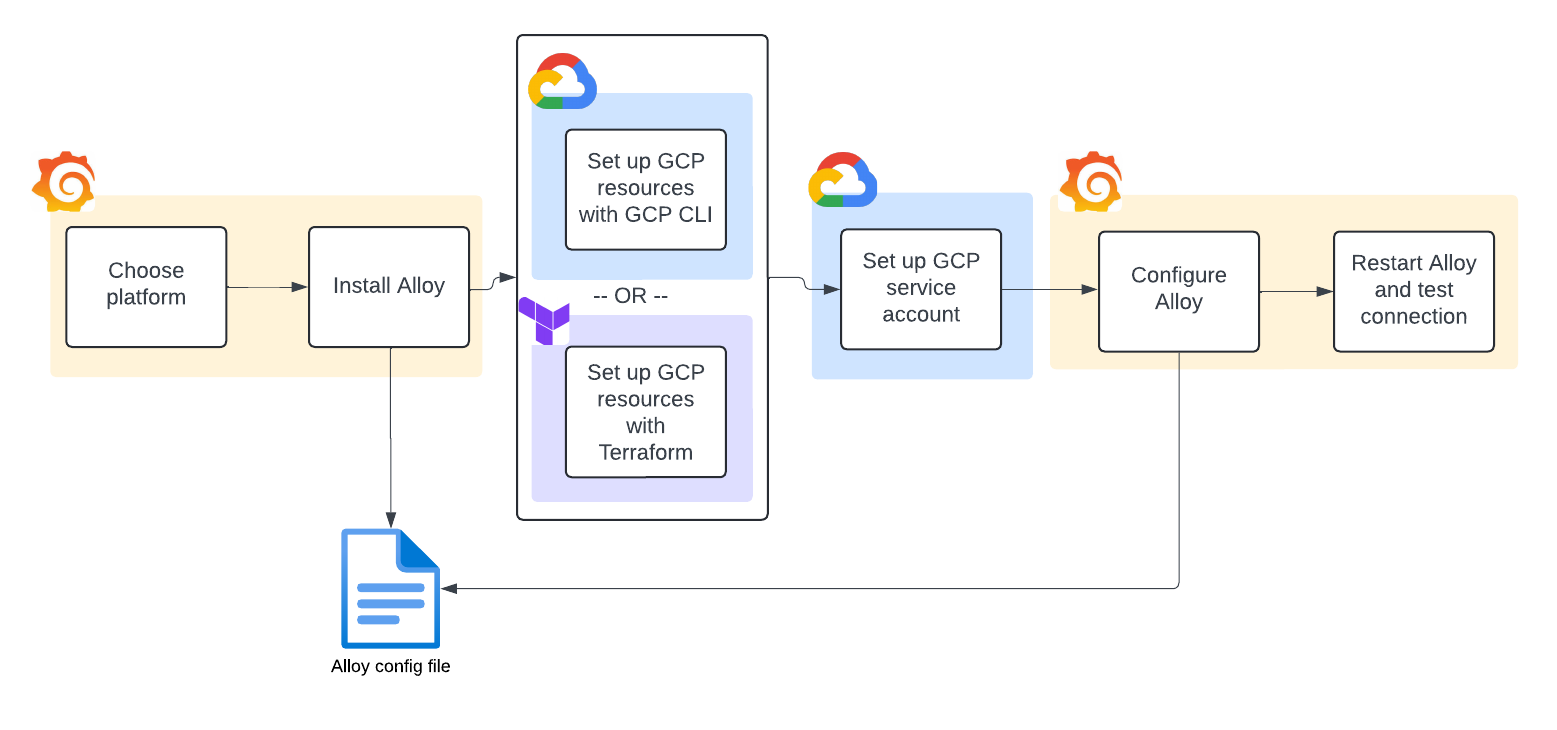
Before you begin
Make sure you have the following roles and access:
- Grafana Cloud: You need the GCP Writer plugin role, Admin basic role, or Grafana Admin basic role to configure GCP logs in Cloud Provider Observability. If you use a plugin role without a Grafana Cloud basic role, you also need the
Datasources:Readerfixed role to view dashboard data. For details, refer to RBAC roles and permissions. - Google Cloud: The account you use to create the log sink, Pub/Sub topic, and subscription needs the
roles/pubsub.editorandroles/logging.configWriterIAM roles. The service account that Alloy uses needs theroles/pubsub.subscriberrole on the subscription. - Tools: Install the
gcloudCLI if you plan to use the command-line setup method.
Select your platform
Select the platform from the drop-down menu.
Install Grafana Alloy
Grafana Alloy reads the logs from the Pub/Sub subscription.
- If you have not already installed Alloy where you intend to run GCP Logs, click Run Grafana Alloy.
- At the Alloy configuration screen, either create a token or use an existing token.
- To create a token, enter a token name, then click Create token. The token displays on the screen and is added to the command for running Alloy. Copy the command and paste it into the terminal.
- To use an existing token, paste it into the token field, then click Proceed to install integration.
- Copy the command and paste it into the terminal.
- Click Proceed to install integration.
Set up GCP logs
In this step, you create the GCP resources that route logs to Grafana Cloud.
You can create these resources with either the gcloud CLI or Terraform.
Choose the method that best fits how you manage your GCP infrastructure.
To set up GCP logs:
- Click Setup instructions.
- At the Set up GCP resources screen, create the required resources for GCP Log collection. A customizable logging sink routes logs from Cloud Logging to Pub/Sub. Grafana Alloy then pulls these logs from the Pub/Sub topic.
- Select either the
gcloudCLI or Terraform configuration.
Configure with gcloud CLI
Complete these steps in the gcloud CLI, then click Close to return to the next step.
To configure with gcloud CLI:
Set up topic in Pub/Sub. This topic acts as the queue to persist log messages so Grafana Alloy can read them. For example:
gcloud pubsub topics create cloud-logsgcloud pubsub topics create @@@TOPIC_ID@@@Set up a log sink to forward logs into the topic you created in the previous step. This command adds a
log-filteroption, which controls the type of logs that reaches the destination topic. For example:gcloud logging sinks create cloud-logs pubsub.googleapis.com/projects/my-project/topics/cloud-logs --log-filter='resource.type=("gcs_bucket")' --description="Cloud logs"gcloud logging sinks create @@@SINK_NAME@@@ @@@SINK_LOCATION@@@ @@@OPTIONAL_FLAGS@@@Find the writer identity service account of the log sink. For example:
gcloud logging sinks describe --format='value(writerIdentity)' cloud-logsgcloud logging sinks describe --format='value(writerIdentity)' @@@SINK_NAME@@@Grant a Pub/Sub publisher role to the log sink by creating an IAM policy binding. This allows the log sink to publish messages to the topic. For example:
gcloud pubsub topics add-iam-policy-binding cloud-logs --member=serviceAccount:pxxxxxxxxx-xxxxxx@gcp-sa-logging.iam.gserviceaccount.com --role=roles/pubsub.publishergcloud pubsub topics add-iam-policy-binding @@@TOPIC_ID@@@ --member=@@@WRITER_IDENTITY@@@ --role=roles/pubsub.publisher`Create a Pub/Sub subscription for log delivery. Alloy uses the subscription to consume log messages. For more options, refer to
gcloud pubsub subscriptions --help. For example:gcloud pubsub subscriptions create cloud-logs --topic=projects/my-project/topics/cloud-logs --ack-deadline=10 --message-retention-duration=7dgcloud pubsub subscriptions create cloud-logs --topic=@@@TOPIC_ID@@@ --ack-deadline=@@@ACK_DEADLINE@@@ --message-retention-duration=@@@RETENTION_DURATION@@@
Configure with Terraform
Tip
If you need help working with Terraform and GCP, refer to this HashiCorp Developer Build infrastructure tutorial.
Complete the following steps with Terraform, then click Close to return to the next set of steps.
To configure with Terraform:
Copy the following code snippet into a TF file:
// Provider module
provider "google" {
project = "$GCP_PROJECT_ID"
}

// Topic
resource "google_pubsub_topic" "main" {
name = "cloud-logs"
}

// Log sink
variable "inclusion_filter" {
type        = string
description = "Optional GCP Logs query which can filter logs being routed to the pub/sub topic and Alloy"
}

resource "google_logging_project_sink" "main" {
name                   = "cloud-logs"
destination            = "pubsub.googleapis.com/${google_pubsub_topic.main.id}"
filter                 = var.inclusion_filter
unique_writer_identity = true
}

resource "google_pubsub_topic_iam_binding" "log-writer" {
topic = google_pubsub_topic.main.name
role  = "roles/pubsub.publisher"
members = [
    google_logging_project_sink.main.writer_identity,
]
}

// Subscription
resource "google_pubsub_subscription" "main" {
name  = "cloud-logs"
topic = google_pubsub_topic.main.name
}
Create the new resources by running the following after replacing the required variable
<GCP Logs query of what logs to include>.terraform apply \ -var="inclusion_filter=@@@<GCP Logs query of what logs to include>@@@"
Set up GCP service account
In the gcloud CLI, create a service account with the pubsub.subscriber permission.
The service account and its permission enables Grafana Alloy to read log entries from the Pub/Sub subscription.
Configure Alloy to consume GCP Pub/Sub
Now that the GCP resources and service account are in place, configure Grafana Alloy to read logs from the Pub/Sub subscription and forward them to Grafana Cloud.
Alloy uses two components to do this:
loki.source.gcplogpulls log entries from the Pub/Sub subscription you created. It retrieves logs from cloud resources such as GCS buckets, load balancers, or Kubernetes clusters running on GCP.discovery.relabeldefines any relabeling rules applied to the logs before Alloy sends them to Loki.
To configure Alloy, add these components to your configuration file and update them with the values from your GCP setup.
To configure Alloy to consume GCP Pub/Sub:
Navigate to the configuration file for your Alloy instance.
Copy the following code snippet and append it to your Alloy configuration file:
discovery.relabel "logs_integrations_integrations_gcp" {
    targets = []

    rule {
        source_labels = ["__gcp_logname"]
        target_label  = "logname"
    }

    rule {
        source_labels = ["__gcp_resource_type"]
        target_label  = "resource_type"
    }
}

loki.source.gcplog "logs_integrations_integrations_gcp" {
    pull {
        project_id   = "@@@<gcp_project_id>@@@"
        subscription = "@@@<gcp_pubsub_subscription_name>@@@"
        labels       = {
            job = "integrations/gcp",
        }
    }
    forward_to    = [loki.write.grafana_cloud_loki.receiver]
    relabel_rules = discovery.relabel.logs_integrations_integrations_gcp.rules
}
Find the following values and replace them as follows with values you created when you set up GCP Logs:
gcp_project_id: replace with the GCP project IDgcp_pubsub_subscription_name: replace with the subscription name
To view additional configuration examples, click Advanced configurations.
Examples of advanced configuration
You can further modify the loki.source.gcplog component for more advanced usages.
Multiple consumers, single subscription
loki.source.gcplog "logs_integrations_integrations_gcp" {
    pull {
        project_id   = "project-1"
        subscription = "subscription-1"
        labels       = {
            job = "integrations/gcp",
        }
    }
    forward_to    = [loki.write.grafana_cloud_loki.receiver]
    relabel_rules = discovery.relabel.logs_integrations_integrations_gcp.rules
}
loki.source.gcplog "logs_integrations_integrations_gcp" {
    pull {
        project_id   = "project-1"
        subscription = "subscription-1"
        labels       = {
            job = "integrations/gcp2",
        }
    }
    forward_to    = [loki.write.grafana_cloud_loki.receiver]
    relabel_rules = discovery.relabel.logs_integrations_integrations_gcp.rules
}
Multiple subscriptions
loki.source.gcplog "logs_integrations_integrations_gcp" {
    pull {
        project_id   = "project-1"
        subscription = "subscription-2"
        labels       = {
            job = "integrations/gcp",
        }
    }
    forward_to    = [loki.write.grafana_cloud_loki.receiver]
    relabel_rules = discovery.relabel.logs_integrations_integrations_gcp.rules
}
loki.source.gcplog "logs_integrations_integrations_gcp" {
    pull {
        project_id   = "project-1"
        subscription = "subscription-1"
        labels       = {
            job = "integrations/gcp2",
        }
    }
    forward_to    = [loki.write.grafana_cloud_loki.receiver]
    relabel_rules = discovery.relabel.logs_integrations_integrations_gcp.rules
}
Restart Grafana Alloy
Run the command appropriate for your platform to restart Grafana Alloy so your changes can take effect.
Test connection
Click Test connection to test that Grafana Alloy is collecting data and sending it to Grafana Cloud.
View your logs
Click the Logs tab to view your logs.
Was this page helpful?
Related resources from Grafana Labs



