
How to create alert rules with log data
How to create alert rules with log data
Loki stores your logs and only indexes labels for each log stream. Using Loki with Grafana Alerting is a powerful way to keep track of what’s happening in your environment. You can create metric alert rules based on content in your log lines to notify your team. What’s even better is that you can add label data from the log message directly into your alert notification.
In this tutorial, you’ll:
- Generate sample logs and collect them with Grafana Alloy.
- Create an alert rule based on a Loki query (LogQL).
- Create a Webhook contact point to send alert notifications to.
Tip
In Get started with Grafana Alerting - Part 2 you can advance your skills by exploring alert instances and notification routing.
Before you begin
There are different ways you can follow along with this tutorial.
Grafana OSS
To run a Grafana stack locally, ensure you have the following applications installed:
- Docker Compose (included in Docker for Desktop for macOS and Windows)
Interactive learning environment
- Alternatively, you can try out this example in our interactive learning environment. It’s a fully configured environment with all the dependencies already installed.
Set up the Grafana stack
To demonstrate the observation of data using the Grafana stack, download and run the following files.
Create a folder for this tutorial, then download and save the Docker Compose file, the Alloy configuration, and the Grafana data source provisioning file for this tutorial. Also create a
logsfolder, which Alloy reads the sample logs from.mkdir alerts-with-logs && cd alerts-with-logs wget https://raw.githubusercontent.com/grafana/tutorial-environment/master/loki-logs/docker-compose.yaml wget https://raw.githubusercontent.com/grafana/tutorial-environment/master/loki-logs/config.alloy mkdir -p provisioning/datasources logs wget -P provisioning/datasources https://raw.githubusercontent.com/grafana/tutorial-environment/master/loki-logs/provisioning/datasources/datasources.yamlRun the Grafana stack.
docker compose up -d
The first time you run docker compose up -d, Docker downloads all the necessary resources for the tutorial. This might take a few minutes, depending on your internet connection.
Note
If you already have Grafana, Loki, or Prometheus running on your system, you might see errors, because the Docker image is trying to use ports that your local installations are already using. If this is the case, stop the services, then run the command again.
Generate sample logs
To demonstrate how to create alert rules based on logs, you’ll use a script that generates realistic log entries to simulate typical monitoring data in Grafana. Running this script outputs logs continuously, each containing a timestamp, HTTP method (either GET or POST), status code (200 for success or 500 for failures), and request duration in milliseconds.
Download and save a Python file that generates logs.
wget https://raw.githubusercontent.com/grafana/tutorial-environment/master/app/loki/web-server-logs-simulator.pyExecute the log-generating Python script.
python3 ./web-server-logs-simulator.py | tee -a logs/web_requests.log
Troubleshooting the script
If you don’t see the sample logs in Explore:
- Does the output file exist, check
logs/web_requests.logto see if it contains logs. - If the file is empty, check that you followed the steps above to create the file.
- If the file exists, verify that the alloy container is running.
- In Grafana Explore, check that the time range is only for the last 5 minutes.
Create a contact point
Besides being an open-source observability tool, Grafana has its own built-in alerting service. This means that you can receive notifications whenever there is an event of interest in your data, and even see these events graphed in your visualizations.
In this step, we set up a new contact point. This contact point uses the webhook integration. This contact point uses the webhooks integration. In order to make this work, we also need an endpoint for our webhook integration to receive the alert. We can use Webhook.site to quickly set up that test endpoint. This way we can make sure that our alert is actually sending a notification somewhere.
In your browser, sign in to your Grafana Cloud account.
OSS users: To log in, navigate to http://localhost:3000, where Grafana should be running.
In another tab, go to Webhook.site.
Copy Your unique URL.
Your webhook endpoint is now waiting for the first request.
Next, let’s configure a contact point in the Grafana Alerting UI to send notifications to our webhook endpoint.
Return to Grafana. In the Grafana sidebar, click Alerting > Notification configuration, and then select the Contact points tab.
Click + New contact point.
In Name, write Webhook.
In Integration, choose Webhook.
In URL, paste the endpoint to your webhook endpoint.
Click Test, and then click Send test notification to send a test alert to your webhook endpoint.
Navigate back to Webhook.site. On the left side, there’s now a
POST /entry. Click it to see what information Grafana sent.
A POST entry in Webhook.site Return to Grafana and click Save contact point.
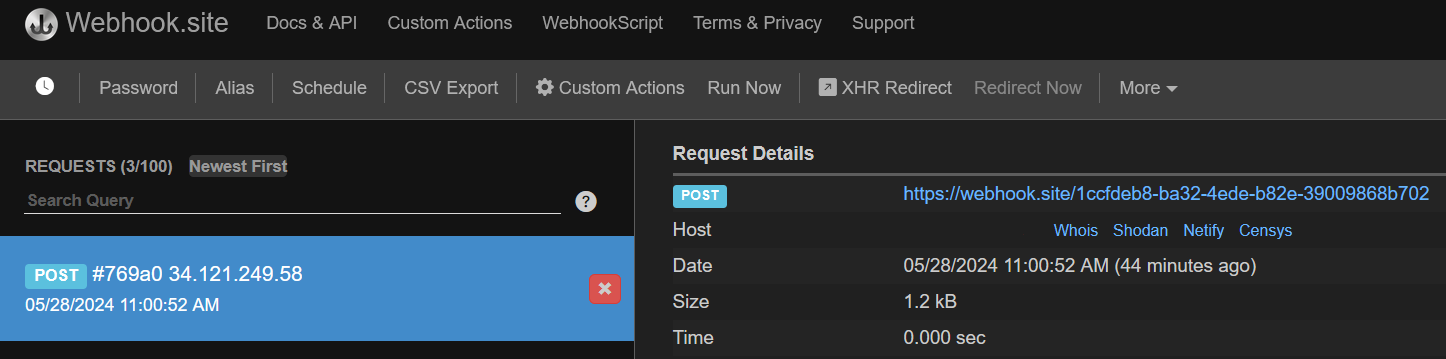
We have created a dummy Webhook endpoint and created a new Alerting contact point in Grafana. Now, we can create an alert rule and link it to this new integration.
Create an alert rule
Next, we’ll establish an alert rule within Grafana Alerting to notify us whenever alert rules are triggered and resolved.
- In Grafana, navigate to Alerting > Alert rules.
- Click on New alert rule.
- Enter alert rule name for your alert rule. Make it short and descriptive as this appears in your alert notification. For instance, web-requests-logs
Define query and alert condition
In this section, we use the default options for Grafana-managed alert rule creation. The default options let us define the query, an expression (used to manipulate the data – the WHEN field in the UI), and the condition that must be met for the alert to be triggered (in default mode is the threshold).
Select the Loki data source from the drop-down.
The query editor opens in Code mode by default. If it’s showing Builder mode instead, click Code on the right.
Paste the query below.
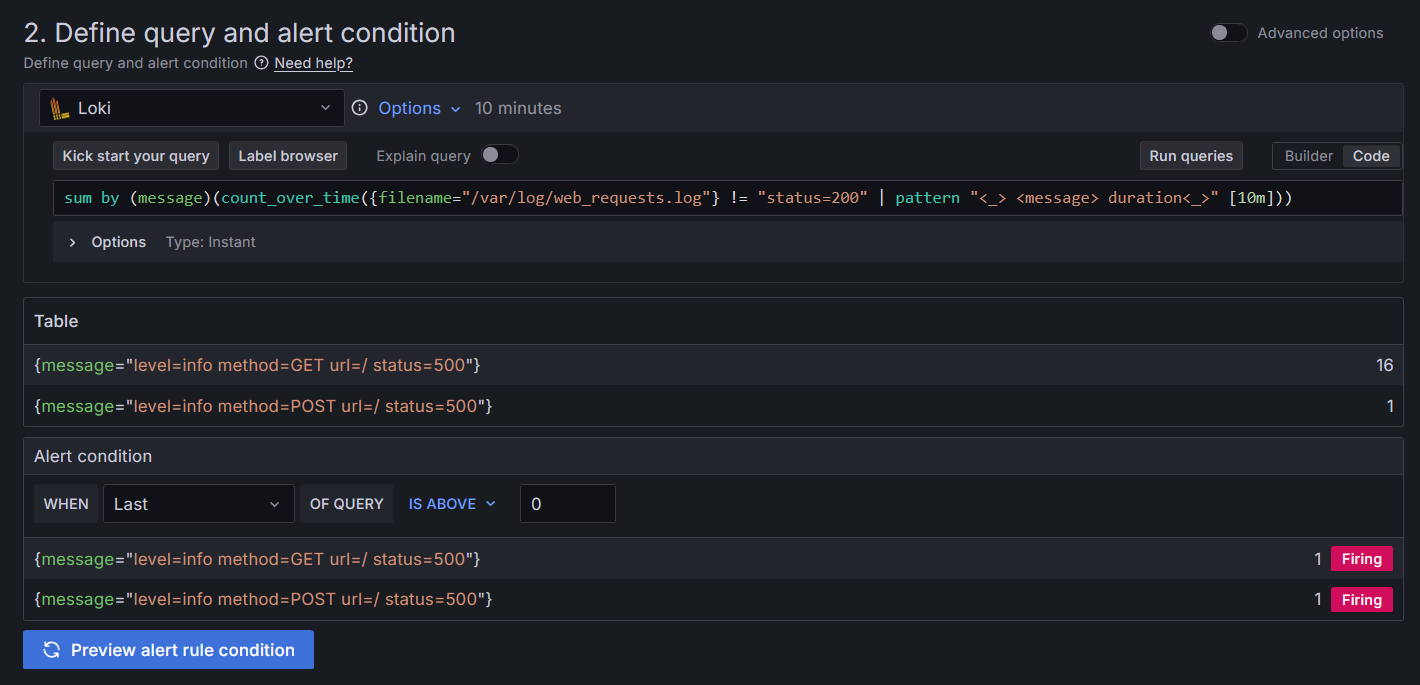
sum by (message)(count_over_time({filename="/var/log/web_requests.log"} != "status=200" | pattern "<_> <message> duration<_>" [10m]))This query counts the number of log lines with a status code that is not 200 (OK), then sum the result set by message type using an instant query and the time interval indicated in brackets. It uses the LogQL pattern parser to add a new label called
messagethat contains the level, method, url, and status from the log line.You can use the explain query toggle button for a full explanation of the query syntax. The optional log-generating script creates a sample log line similar to the one below:
2023-04-22T02:49:32.562825+00:00 level=info method=GET url=test.com status=200 duration=171msNote
If you’re using your own logs, modify the LogQL query to match your own log message. Refer to the Loki docs to understand the pattern parser.
In the Alert condition section, confirm the condition reads WHEN QUERY IS ABOVE
0. This is the default, and0is the threshold above which the alert rule should trigger.Click Preview alert rule condition to run the query.
It should return alert instances from log lines with a status code that is not 200 (OK), and that has met the alert condition. The condition for the alert rule to fire is any occurrence that goes over the threshold of
0. Since the Loki query has returned more than zero alert instances, the alert rule isFiring.
Preview of a firing alert instances
Set evaluation behavior
The alert rule evaluation defines the conditions under which an alert rule triggers, based on the following settings:
- Evaluation group: every alert rule is assigned to an evaluation group. You can assign the alert rule to an existing evaluation group or create a new one.
- Evaluation interval: determines how frequently the alert rule is checked. For instance, the evaluation may occur every 10s, 30s, 1m, 10m, etc.
- Pending period: how long the condition must be met to trigger the alert rule.
- Keep firing for: defines how long an alert should remain in the Firing state after the alert condition stops being true. During this time, the alert enters a Recovering state, suppressing additional notifications but keeping the alert active. It helps prevent alert flapping, where alerts rapidly switch between firing and resolved due to noisy or unstable metrics.
To set up the evaluation:
- In Folder, click + New folder and enter a name. For example: web-server-alerts. This folder contains our alerts.
- In Evaluation group and interval, click + New evaluation group.
- In Evaluation group name, enter 1m-evaluation.
- Keep Evaluation interval set to
1m(1 minute), so the alert rule is evaluated every minute, and then click Create. - Set the pending period to,
0s(zero seconds), so the alert rule fires the moment the condition is met. - Set Keep firing for to,
0s, so the alert stops firing immediately after the condition is no longer true. Use this when you want alerts to be resolved as soon as the system is healthy again.
Configure labels and notifications
Choose the contact point where you want to receive your alert notifications.
- Under Contact point, select Webhook from the drop-down menu.
- Click Save at the bottom of the page.
Trigger the alert rule
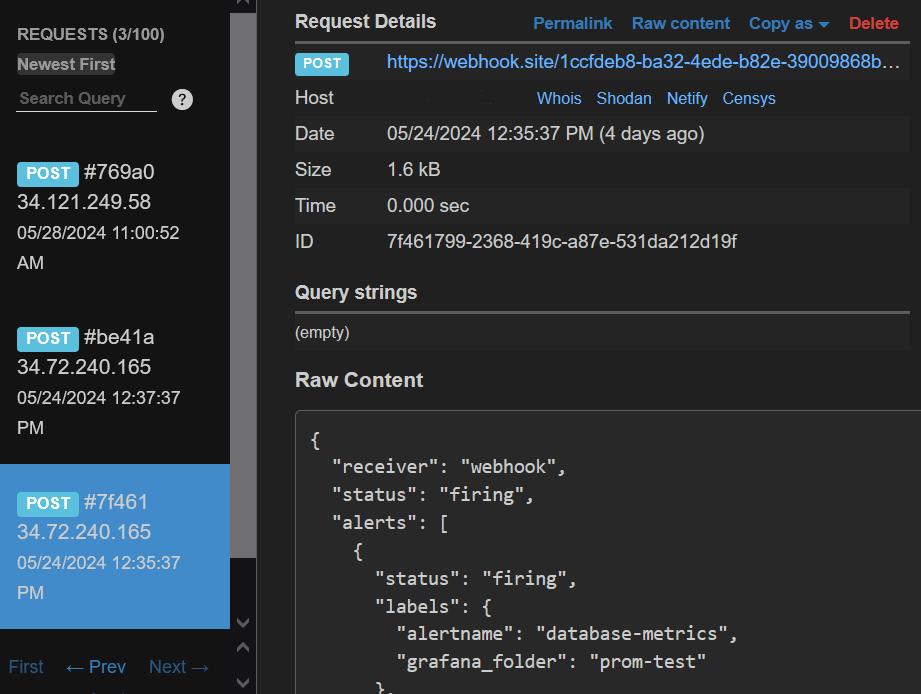
Since the Python script continues to generate log data that matches the alert rule condition, once the evaluation interval has concluded, you should receive an alert notification in the Webhook endpoint.
Tip
In Get started with Grafana Alerting - Part 2 you can advance your skills by exploring alert instances and notification routing.